How to Activate Your EPLAN Schematic Solution License
After purchasing one or more EPLAN Schematic Solution licenses, you will receive an email with the license keys. These represent your digital licenses, and can be activated directly in your MyFesto account.
Activate Your EPLAN Schematic Solution License
1. Create an EPLAN Schematic Solution project
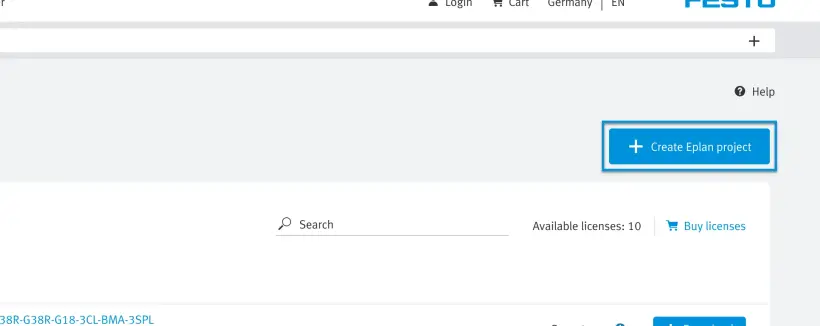
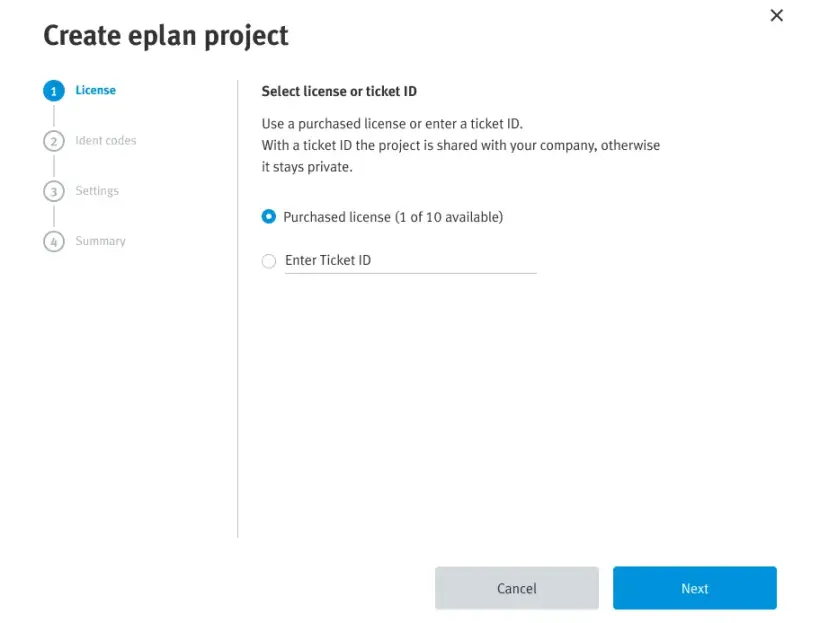
2.1 Either use your existing licenses, which are connected to your account
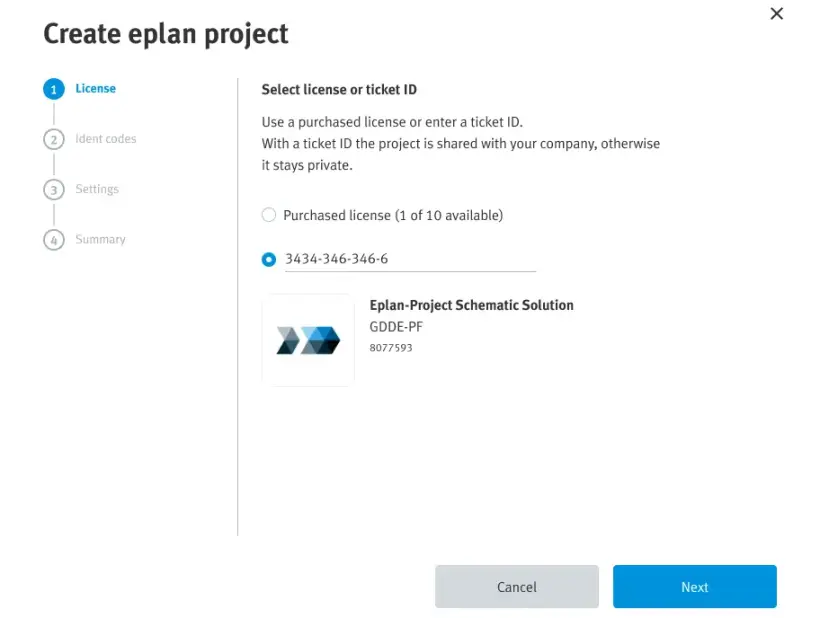
2.2 Or enter the license key from the email you received
3. Enter the ident code of the product combination
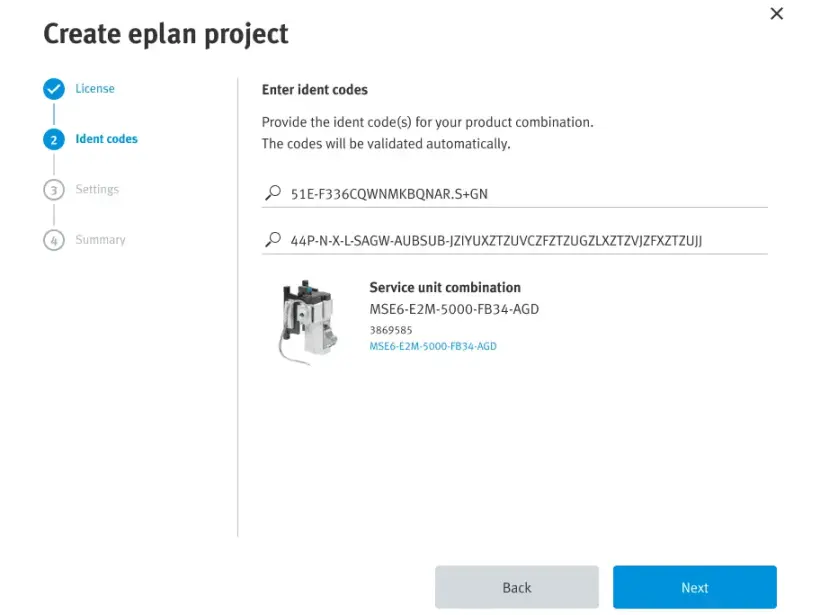
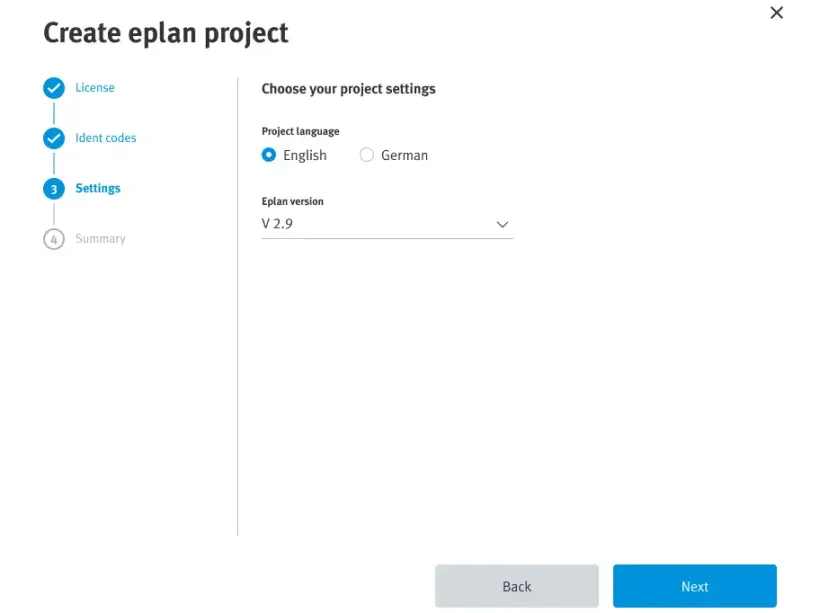
4. Choose the language and version
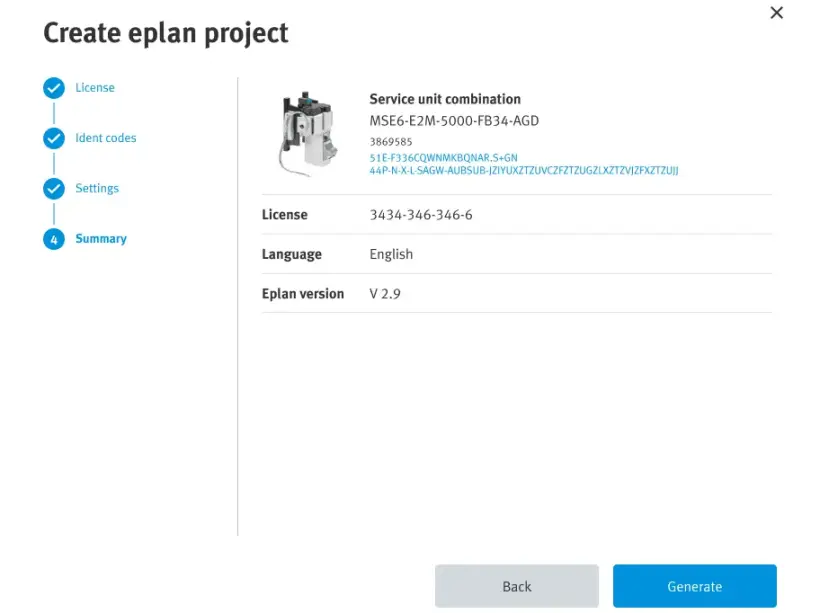
5. Validate the summary of your EPLAN Schematic Solution project
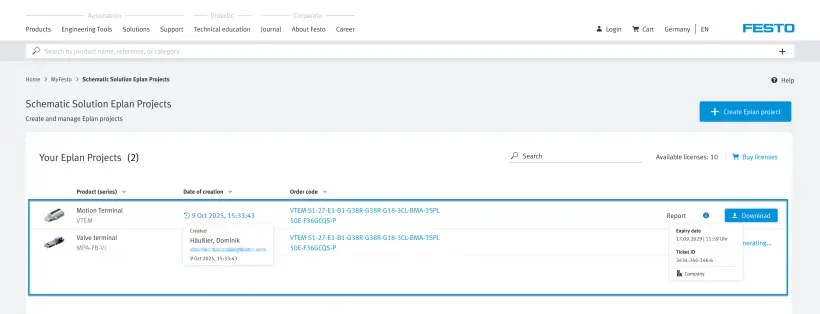
6. Select and download your project
How to activate your Festo LX License
This guide will walk you step by step through the first stages on Festo LX. This can be to create your account, activate a license, or to familiarize yourself with the most important functionalities.
For more detailed information, we recommend you have a look at our How it Works-courses later.
We have 2 courses available:
Create an Account on Festo LX
1. Go to
2. Manage the Cookie Policy
3. If necessary, change the language of the Festo LX portal as it will be the basis for the next steps

4. Click on "Create Account" in the top right-hand corner
If you already have an account for any other Festo application, software or website, you can also use this account for Festo LX.
If you have purchased our Single Sign-On option, you can use your email address without needing to create a new account.

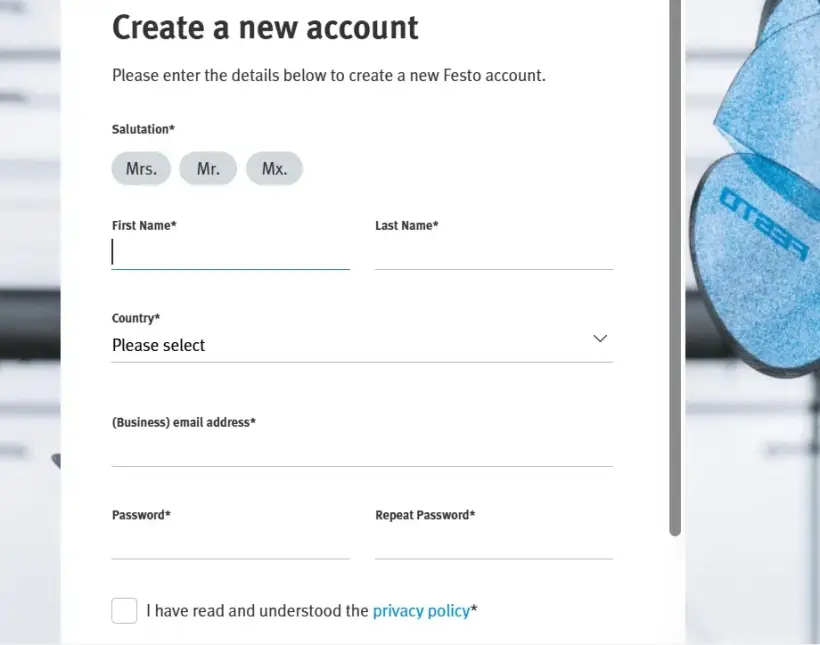
5. Enter all necessary information to create your account